Sales invoice
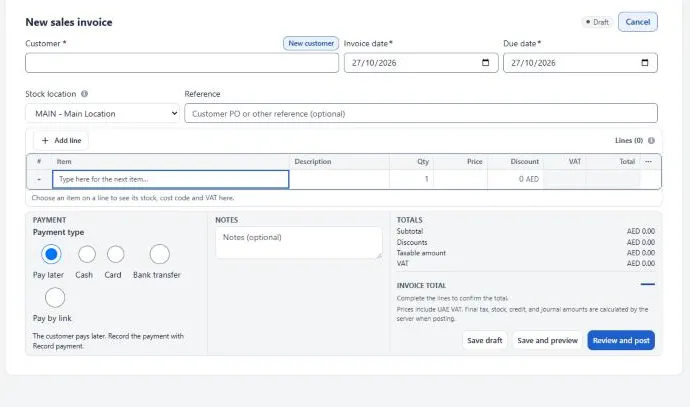
A sales invoice records a sale to a named customer from the back office. Posting it does four things in one journal entry: it adds to what the customer owes you, books the income, books the VAT, and takes the stock out at its cost.
- Where
- Sales › Invoices › New invoice
- Number
- ARINV-000001, given only when you post
- Posts to
- Accounts Receivable, Sales and Service Revenue, Output Tax, Cost of Goods Sold, Inventory
- Who
- Managers and admins
What it’s for
Section titled “What it’s for”- Sales outside the till: customers on credit, delivery sales, larger orders and services.
- The customer can pay now (Cash, Card, Bank transfer or Pay by link) or later (Pay later).
- Bills made at the till (Point of sale) are separate. They also appear in Sales history.
Fields
Section titled “Fields”| Field | What it means | What it changes |
|---|---|---|
| Customer | Who you sell to. Search, or add one with New customer | Their balance goes up. Picking a customer fills the due date from their payment terms |
| Invoice date | Defaults to today | The date of the journal entry, the stock movement and the VAT. It cannot be in the future when you post |
| Due date | When payment is due | Drives “Overdue” on the Overview. It cannot be before the invoice date |
| Stock location | The store the goods leave from | Needed only when a line is a stock item |
| Reference | The customer’s order number or similar (optional) | Printed only; no accounting effect |
| Item | A product or a service | A stock item books Sales Revenue and takes stock out; a service books Service Revenue |
| Description | Optional extra text for the line | Printed only |
| Qty | How many | Stock out and the line amount |
| Price | Price per unit. A company setting decides whether prices include VAT; the note under the totals tells you which | The line amount |
| Discount | Per unit, as an amount or a % | Lowers the sale. There is no whole-invoice discount on this screen |
| VAT | Worked out per line from the item’s tax profile. Hidden if your company is not VAT registered | Output Tax Payable |
| Payment type | Pay later, Cash, Card, Bank transfer, or Pay by link (if switched on) | Paying now posts a payment together with the invoice |
| Notes | Optional note | Printed only |
Buttons
Section titled “Buttons”Nothing touches your accounts until Post invoice. Every button after that changes them in a controlled way.
| Button | When you see it | What happens | Accounts |
|---|---|---|---|
| Save draft | New or draft | Saves it. No number yet | No change |
| Save and preview | New or draft | Saves it and shows the print preview | No change |
| Review and post | New or draft | Opens “Post this customer invoice?” with the checks, then Post invoice | Posts |
| Hold invoice / Unhold invoice | Draft | A held draft cannot be posted until it is unheld | No change |
| Cancel draft | Draft | Asks for a reason. The draft stays in the list as “Cancelled draft” | No change |
| Record payment | Posted, money still owed | Opens a customer payment for the amount owed | Posts payment |
| Edit bill | Posted | Change the posted invoice: Review changes, then Save changes. Asks for a reason | Restated on its own date |
| Edit details | Posted, when a full edit is not allowed | Changes only the due date, reference and note | No change |
| Return | Posted | Makes a credit note for some or all of the items | New document |
| Print… | Posted | Shows the tax invoice to print | No change |
| More › Delivery note | Posted | Prints a delivery note, with or without prices | No change |
| More › Cancel erroneous sale | Posted, admins only | Removes the sale as if it never happened | All effects removed |
| Correct this invoice | Posted and made from a delivery, admins only | Takes the invoice back and sends the delivery to Awaiting invoice again. Sales, VAT and stock stay as the delivery booked them | Invoice taken back |
| Accounting details | Posted | Shows the journal number, VAT by rate, the stock cost posted and payments received | No change |
Statuses you will see: Draft, Held draft, Posted, Cancelled draft, and Cancelled (after Cancel erroneous sale). Payment badges show Unpaid, Part paid, Overdue or Paid. There is no Void button; to undo an invoice, see Fixing a mistake.
What gets posted
Section titled “What gets posted”Posting writes one journal entry, dated on the invoice date. Lines with a zero amount are left out.
- 2 × stock item at 100.00, less 10.00 discount each180.00
- 1 × service at 50.0050.00
- VAT 5% on 230.0011.50
- Invoice total241.50
- Cost of the stock item (average cost 5.00 each)10.00
| Account | Debit (AED) | Credit (AED) | Why |
|---|---|---|---|
| 1100Accounts Receivable | 241.50 | The customer owes the full total | |
| 4000Sales Revenue | 180.00 | Income from goods, after the discount | |
| 4200Service Revenue | 50.00 | Income from the service | |
| 2100Output Tax Payable | 11.50 | VAT you owe the FTA | |
| 5000Cost of Goods Sold | 10.00 | What the 2 items cost you | |
| 1200Inventory | 10.00 | Your stock value goes down | |
| Total | 251.50 | 251.50 | Balanced |
Two units also leave the chosen stock location. The discount has no line of its own: income is booked after the discount. Profit on this invoice: 230.00 − 10.00 = AED 220.00.
| Account | Debit (AED) | Credit (AED) |
|---|---|---|
| 1100Accounts Receivable | 99.99 | |
| 4000Sales Revenue | 95.23 | |
| 2100Output Tax Payable | 4.76 | |
| Total | 99.99 | 99.99 |
The app takes the VAT out of the price you type, rounded to the fils on each line. Here, 3 × an item at AED 33.33 including VAT makes a line total of 99.99. The cost lines follow as in example 1.
A simpler case: a price of 105.00 including VAT is income 100.00 plus VAT 5.00.
| Account | Debit (AED) | Credit (AED) | Why |
|---|---|---|---|
| 1000Cash on Hand (the cash account you pick) | 100.00 | Cash came in | |
| 1100Accounts Receivable | 100.00 | The customer owes less | |
| Total | 100.00 | 100.00 | Balanced |
The app saves two entries together; if either one fails, neither is saved. The first is the invoice, exactly as in example 1. The second, above, is the payment. The customer still owes AED 141.50, and the invoice shows Part paid.
The payment type decides which account receives the money:
| Payment type | Account debited |
|---|---|
| Cash | The cash account you pick, such as Cash on Hand |
| Bank transfer | The bank account you pick |
| Card | The card machine’s own account, “Card clearing - ‹machine›”, until the card company pays your bank |
| Pay by link | The provider’s own account, “Pay by link - ‹provider›”, until the provider pays you |
| Account | Debit (AED) | Credit (AED) |
|---|---|---|
| 1100Accounts Receivable | 39.00 | |
| 4000Sales Revenue | 37.05 | |
| 2100Output Tax Payable | 1.85 | |
| 6760Rounding Difference | 0.10 | |
| Total | 39.00 | 39.00 |
Totals can be rounded to 0.05, 0.25, 0.50 or 1.00. Income, VAT and cost are never rounded; only the total is, and the difference goes to Rounding Difference. Rounding to 0.25: 3 × 12.35 = 37.05, plus VAT 1.85 = 38.90, so the customer pays 39.00.
Try your own numbers
Section titled “Try your own numbers”Change the numbers to see the entry the app posts for one invoice line. VAT is worked out per line and rounded to the fils, as the app does. Choose the same price setting as your company uses.
- Customer pays
- 105.00
- Income
- 100.00
- VAT
- 5.00
- Profit
- 40.00
Other rules that apply on every invoice
Section titled “Other rules that apply on every invoice”- Stock cost: the item’s average cost across the whole company. One exception: if the sale takes the last units at a location, it uses exactly the value left at that location.
- No VAT: if your company is not VAT registered on the invoice date, every line is 0% and there is no Output Tax line. A zero-rated item posts no VAT line either.
- Short of stock: the app refuses to post by default. If your company switched on “Allow selling stock that has not been received yet” in Settings, it first books the missing units as stock owed at an estimated cost, then posts. The owed stock is settled when the goods arrive.
- Bundles: a bundle is one income line. Its parts leave stock through a separate stock entry.
Where it shows up
Section titled “Where it shows up”| Place | What changes after posting |
|---|---|
| Customer balance and statement | The customer owes the invoice total, less anything paid |
| Overview | “Sales (before tax)” and “Owed to you” go up; after the due date it is listed under “Overdue customer payments” |
| Sales history | The invoice is listed with the till bills |
| Day book | One entry for the invoice, plus one for any payment taken at posting |
| VAT return (Detailed Reports › Tax) | The VAT counts in the period of the invoice date, in the “Standard-rated” row for your emirate (or Zero-rated or Exempt) |
| Profit and loss | Sales Revenue, Service Revenue and Cost of Goods Sold |
| Balance sheet | Accounts Receivable, Inventory and Output Tax Payable |
| Stock reports | A sale movement at the chosen stock location |
What the app blocks
Section titled “What the app blocks”These checks happen before anything is saved, so a refused invoice leaves no half-written records.
| Situation | What you see |
|---|---|
| No customer | Select a valid customer. |
| No lines | Add at least one item. |
| Quantity of 0 | Quantity must be greater than zero. |
| Price of 0 | Unit price must be greater than zero. |
| Discount equal to or above the price | Unit discount must be less than unit price. |
| The same item on two lines | Combine duplicate item lines. |
| Due date before the invoice date | Due date cannot be before the invoice date. |
| Stock item but no stock location | Select a stock location for inventory items. |
| Posting with a future date (a future draft can still be saved) | The posting date cannot be in the future. |
| Date inside a locked period | The accounting period is locked through ‹date›. Choose a later date, or ask an administrator to reopen the period. |
| Not enough stock (default setting) | Only 4 PCS of ‹item› is in stock at this location. or ‹item› is out of stock at this location. |
| Posting a held draft | Unhold this draft before posting it. No accounting or stock records were created. |
| Inactive customer | This customer is inactive or unavailable. Reactivate or select another customer. |
| A VAT rate with no UAE treatment set | Add an effective UAE VAT treatment for each item tax profile before posting. |
| Anything else goes wrong while posting | The invoice could not be posted safely. No accounting or stock records were created. |
Warnings that do not stop posting
Section titled “Warnings that do not stop posting”- Credit limit or credit hold. The app warns but still lets you post. The message after posting says how far over the limit the customer is.
- Selling below cost. The line shows a “Below cost” badge.
Who can do it
Section titled “Who can do it”| Action | Admin | Manager | Cashier |
|---|---|---|---|
| See, create, save, post, hold, cancel drafts, print | Yes | Yes | No, cashiers sell at the till |
| Edit bill on a posted invoice | Yes | Yes | No |
| Cancel erroneous sale | Yes | No | No |
| Take payment while posting | Yes | Yes, with the right to record customer payments too | No |
These are the standard roles. Your administrator can give a custom role each action separately in Settings › Users & access.
Fixing a mistake
Section titled “Fixing a mistake”- Still a draft. Use Edit draft, or Cancel draft. Your accounts are not touched.
- Posted, with a wrong item, quantity, price, customer, date or payment type. Use Edit bill.
- The invoice is restated on its own invoice date, with the same number.
- A reason is required, and the history keeps the before and after.
- If the new total is below what was already paid, the extra becomes customer advance, in a small separate entry dated the day you save. Example: an invoice of 241.50 paid in full, edited from 2 items to 1, becomes 147.00, and 94.50 becomes advance.
- If the item lines did not change, the stock cost stays as it was.
- The customer returns goods, or you give an allowance. Use Return. It makes a credit note dated the day you make it. It reduces income and VAT, and puts restocked goods back at their original cost. See Credit notes.
- The invoice was made from a delivery. An admin uses Correct this invoice. The delivery goes back to Awaiting invoice, and money already received becomes customer advance. See Deliveries.
- The sale should never have been recorded. An admin uses More › Cancel erroneous sale. Every ledger, stock and VAT effect is removed, and the number stays as Cancelled. Money already received becomes customer advance; no refund is paid automatically.
When Edit bill is not allowed
Section titled “When Edit bill is not allowed”In these cases only Edit details (due date, reference, note) is offered. A credit note may still be possible.
- A credit note is already linked to the invoice.
- The invoice is in a VAT return with locked figures.
- Its date is in a locked period, or behind a bank reconciliation or a cash count.
- It was made from a quotation, a sales order or a delivery.
- It was made by a Tailoring hand-over. Sales offers no change to it; see Tailoring: collection and reports.
A bill part paid at the till can still be edited, but its customer and date stay as they were, and its total cannot go below what was already paid. To reduce it, return the item. See Finding and editing bills.